Posts

How to Restrict users from Uploading and Downloading Certain File Types

If a customer wishes to restrict the types of files (by file-name extension) that can be downloaded by an end-user, an example of how to do so may be found in the PeopleTools Test Utilities demo application ("PeopleTools->Utilities->Debug->PeopleTools Test Utilities"). Below Sample PeopleCode uses the "JSP" file extension, something similar may be done to restrict other file-types or to specify a list of permissible file-name extensions rather than a list of impermissible file-name extensions. First, implement something like the user-defined PeopleCode function, IsLegalAttachmentType, as it is defined in the "FILE_ATTACH_WRK . ATTACHUTIL . FieldChange" Record PeopleCode program:     Function IsLegalAttachmentType(&str_AttachFileName As string) Returns boolean;         rem Create array of illegal file-types (use uppercase only!);         Local array of string &IllegalTypesArray = CreateArray(".JSP");   ...
Peoplesoft CFO Tool

Peoplesoft CFO (Cumulative Feature Overview tool) is online. https://apexapps.oracle.com/pls/apex/f?p=10319:18:0 Oracle provides a cumulative feature overview tool for PeopleSoft 9.2 to start your fit gap analysis.

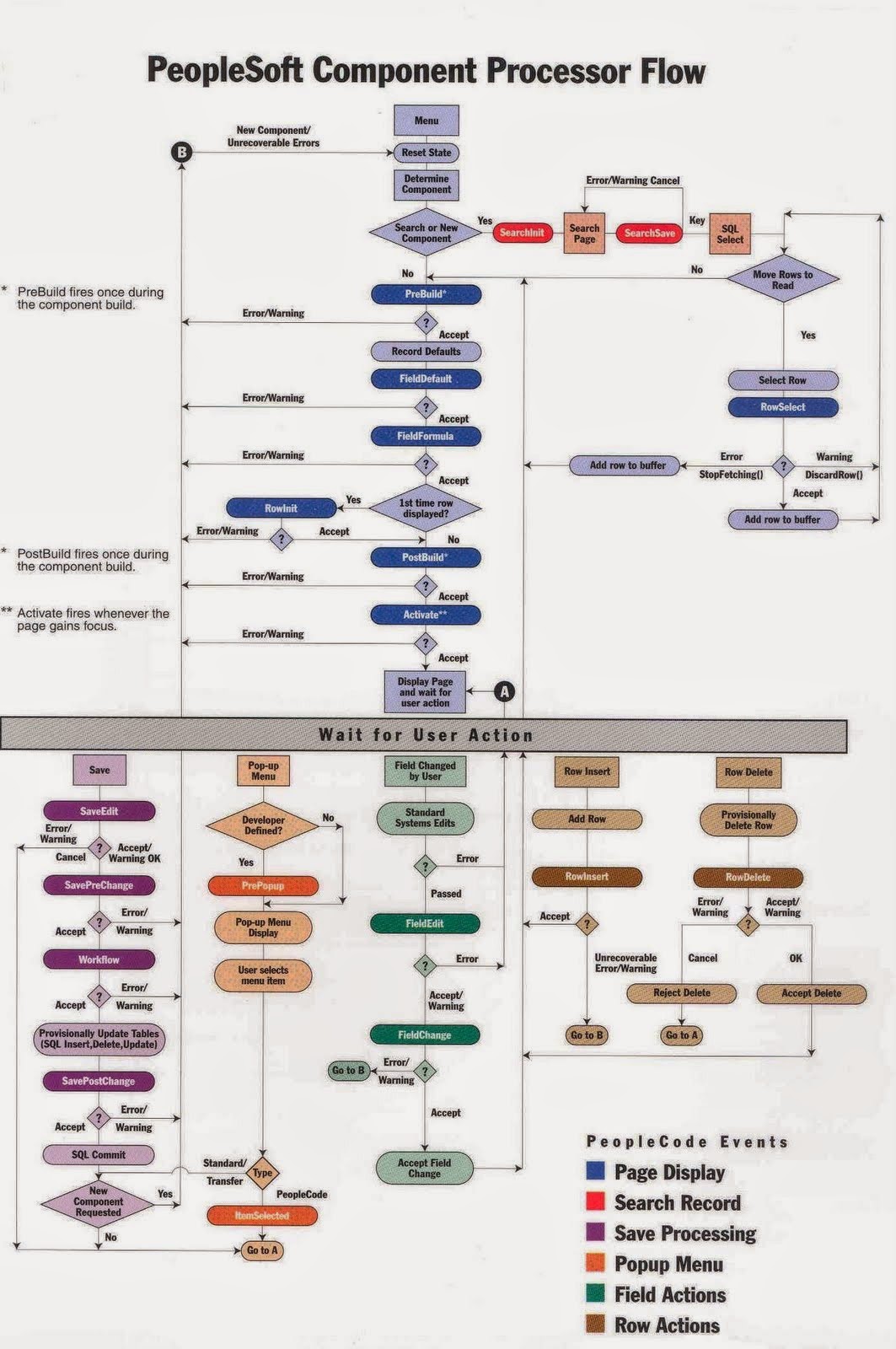
Peoplesoft Component Processor Flow

Image

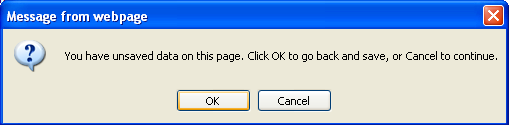
Stop the Save warning

Image
PeopleTools function SetSaveWarningFilter. SetSaveWarningFilter(True) disables the Save Warning while SetSaveWarningFilter(False) enables the Save Warning. This can also be achieved by setting to False the SetComponentChanged property of the rowset that was causing the issue. If  rowset is causing the issue then you should set the SetComponentChanged property to False since it makes for easier maintenance. The SetSaveWarningFilter option on the other hand, is more of a generic solution for cases where it’s difficult to find out exactly what is causing the issue.

Difference Between PeopleTools Version Control and Change Control

There is a feature in Application Designer called "Change Control" but that is different than Version Control.   Change Control locking is keyed by PeopleSoft user IDs. When a definition is locked, it cannot be modified by anyone other than the user ID who locked it, and it can be unlocked only by that same user or by a Change Control administrator. Locking Compared to Version Control Change Control locking is not the same as version control. With a version control system, you check out a copy of a definition and make your changes to the copy. After you check in the changed version, you can always undo your changes. This is not the case with change control locking. Locking a definition prevents other users from modifying it. However, any changes that you save are written directly to the database, overlaying or replacing the existing definition. There is no way to restore a previous version of a definition. There is NO delivered Version Control mechanism.

How to Copy the Index Override Value to another Database via Project Copy?

Image
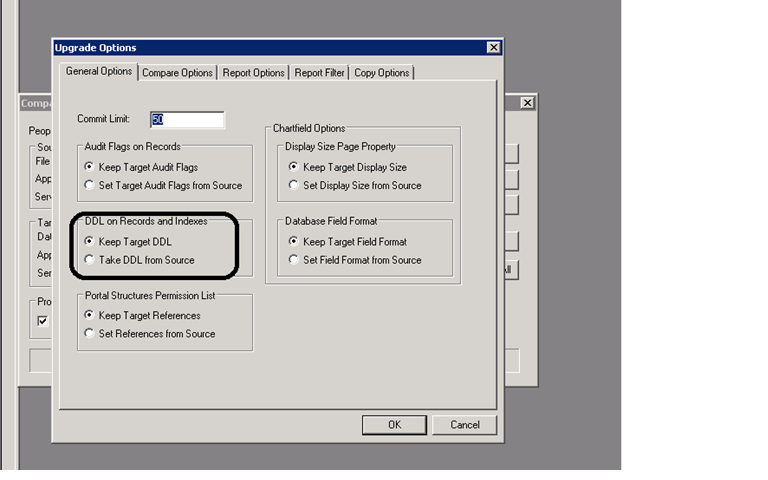
Indexes are an important part of your physical database because they affect the efficiency and speed with which your application can store and retrieve data. PeopleSoft application indexes are defined in two ways. Some indexes are defined for you automatically, based on the key, search key, list box items, and alternate search keys that you specified in your record definition. The application processor uses these indexes for quick access when you use the online system. However, sometimes you need to define additional indexes to improve the performance of demanding queries, reports, or batch programs. You define and modify these additional indexes using the data administration tools in PeopleSoft Application Designer. Now the question is how to copy over the override values of indexes while doing Copy Project. Following Settings are required to be done before copying the Projects so that the override values of indexes are copied over: 1. Open Application Designer. 2. Click on...

How to Copy Projects from One Database to Another?

Copying Projects There are two ways to copy projects to another database: · Copying a source project directly to a target database to which you are connected. · Copying a source project to a file and then copying the file to a target database. The Copy Project to File/from File is a new feature giving you more flexibility in moving PeopleTools objects and projects across databases. To move objects to another database, you copy objects to a target directory and files, instead of another database. The directory and files can be local or reside on a file server. These files then become the source in the Copy Project from File operation. Copying Projects to Target Database To copy a project: 1. Optionally, lock target database objects.  Before Application Designer replaces or deletes an object in the target database, it checks to see whether the object has a Change Control lock applied. If so, it will only take action on that object if the same operator ID that is performin...